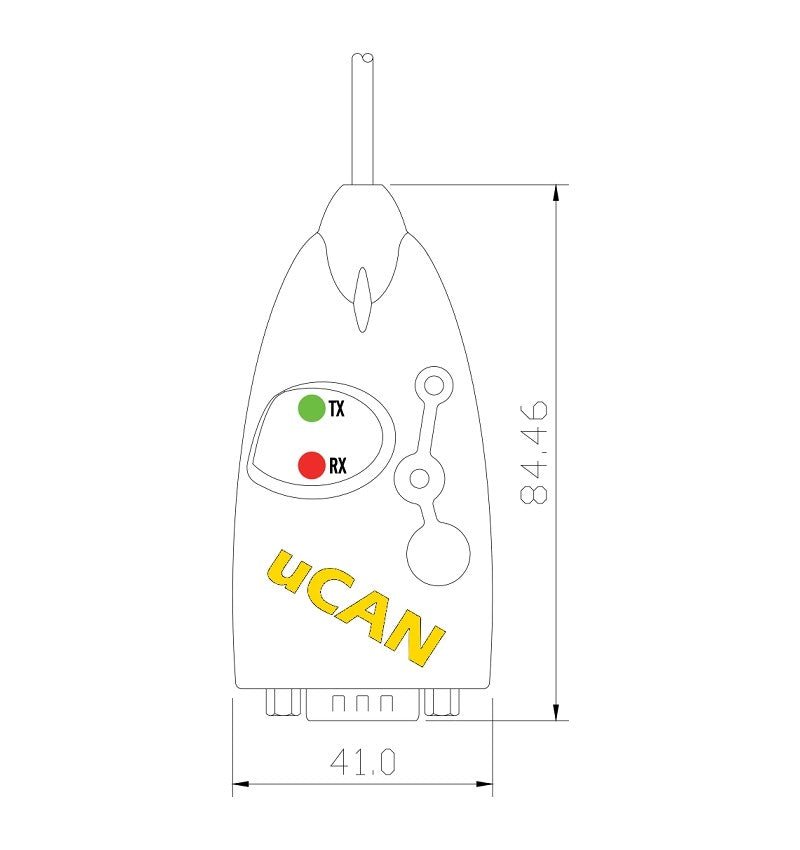


SystemBase uCAN/Analyzer Industrial USB to CAN Bus Analyzer
SystemBase uCAN/Analyzer Industrial USB to CAN Bus Analyzer
No se pudo cargar la disponibilidad de retiro
📋 Overview
📦 Special-Order · Ships in 1–2 Weeks
The SystemBase uCAN/Analyzer is a USB-connected CAN bus analyzer built for engineers who need to see, test, and troubleshoot everything happening on a CAN network — not just pass data through it. It connects to any Windows PC via USB and to the CAN bus via a DB9 port, and is recognized as a standard HID (Human Interface Device) — just like a mouse or keyboard — so no driver installation is required on Windows XP or later.
The included uCAN View software turns the uCAN/Analyzer into a full-featured CAN bus analyzer and exerciser: capture and filter live CAN traffic, sort and inspect individual frames down to the bit level, transmit custom test frames, and monitor bus error counts in real time. For developers who want to build custom tools, a DLL is also provided for direct programmatic access to the device.
🎯 Applications — What Problems Does uCAN/Analyzer Solve?
This is a dedicated diagnostic and development tool, not just a pass-through converter — it's built for the moments when you need to actually understand what's happening on a CAN bus, not just relay data across one.
- CAN bus troubleshooting and diagnostics: Capture live traffic on a vehicle, machine, or industrial CAN network and use filtering, sorting, and bit-level frame inspection to track down the source of a fault.
- Embedded and CAN device development: Use the Exerciser function to generate custom test frames (including automatic responses to specific incoming frames) while developing or validating a new CAN-based device.
- Error and network health monitoring: Track TEC (Transmit Error Count), REC (Receive Error Count), and LEC (Last Error Code) in real time to understand whether a CAN bus is healthy, degrading, or in bus-off state.
- Data logging and offline analysis: Save captured CAN traffic to a DCU file with timestamps, then reload it later for deeper analysis or to share with a colleague.
- Custom software and automated test development: Use the provided DLL to build your own applications around the uCAN/Analyzer — automated test rigs, custom loggers, or integration into an existing test framework.
- Field and lab portability: No driver installation and simple USB/HID recognition make it easy to bring a laptop, plug in, and start capturing data — no setup delays in the field.
⭐ Key Features
- Recognized as a standard HID device — no separate driver required on Windows XP or later
- uCAN View software for real-time CAN frame capture, analysis, filtering, sorting, and error monitoring
- Exerciser function — define up to 4 custom CAN frames with automatic transmission at configurable intervals, plus automatic response to defined input frames
- Bit-level Detailed Frame View for inspecting SOF, ID, RTR, IDE, DLC, and DATA fields
- TEC/REC/LEC error tracking with a dedicated Error Status window (Active, Passive, Bus-Off modes)
- Save and reload captured CAN traffic as DCU files, with millisecond timestamps
- Supports CAN 2.0A and 2.0B, up to 1Mbps
- ABOR (Automatic Bus-Off Recovery) and ART (Automatic Retransmission) modes
- DLL provided for custom application development
- ±15KV ESD protection and -40°C to 85°C operating range for industrial and field use
- USB bus-powered — no separate power adapter needed
📊 Specifications
| Product Type | Industrial USB to CAN Analyzer |
| USB Interface | USB Type A, USB 2.0 High-Speed |
| USB Cable | Approx. 0.6m (600mm) integrated cable |
| CAN Interface | DB9 Male, 1 port |
| CAN Max Speed | 1Mbps |
| CAN Standard | CAN 2.0A / 2.0B |
| CAN Signals | CAN_H (pin 7), CAN_L (pin 2), GND |
| ESD Protection | ±15KV |
| Power | USB bus-powered (no external adapter required) |
| Dimensions | Approx. 80 × 40 × 23 mm (3.15 × 1.57 × 0.91 inches) L × W × H |
| Weight | 50 g |
| Configuration Utility | uCAN View (Windows 7/8/8.1/10, 32/64-bit; Windows Server 2008 or later) |
| Utility Functions | Filtering, Sorting, Exerciser, Response Function, Error Status |
| Development Support | DLL provided for custom application development |
| Device Recognition | HID-compliant device / USB Input Device (no driver required) |
| Operating Temperature | -40°C to 85°C |
| Storage Temperature | -40°C to 85°C |
| Humidity | 5% to 95%, non-condensing |
| Certifications | CE, KC |
📦 What's in the Box
- 1× SystemBase uCAN/Analyzer with integrated USB cable
Note: The USB cable is permanently attached to the device — there is no separate cable to lose or misplace. The uCAN View software and DLL are provided as a free download from SystemBase.
This item ships from the manufacturer's existing factory stock rather than our own warehouse — which is why we can offer it at this price while still keeping delivery quick. We receive it first and ship it to you directly from Envistia Mall, with delivery typically taking ~1–2 weeks. Because it's ordered in specifically to fill your request, we're unable to modify, cancel, or return it once the order is placed. Have a question about compatibility or specs before you buy? Just message us — happy to help.
📌 Pinout / Pin Diagram
CAN Side (DB9 Male):
- Pin 2: CAN_L (CAN Low)
- Pin 6: GND
- Pin 7: CAN_H (CAN High)
🔧 Setup / Configuration
A 2-position DIP switch on the bottom of the uCAN/Analyzer controls the built-in CAN bus termination resistor:
- Switch 1 + Switch 2 both ON: Terminal resistor enabled
- Switch 1 + Switch 2 both OFF (default): Terminal resistor disabled
- Other switch combinations are not used.
To begin capturing data, install uCAN View, connect the uCAN/Analyzer to a USB port, click Connect, and select the recognized device from the Connection Setting window. Use the Setup button to choose a preset CAN baud rate (default 125Kbps) or configure advanced bit-timing parameters (ClkDiv, BTR, SJW, TSEG1, TSEG2) manually, and enable ABOR or ART if needed for your network conditions.
Note: The uCAN View buffer holds a maximum of 50,000 frames. If CAN data stops appearing, check that the buffer isn't full and use Clear to reset it — this is one of the first troubleshooting steps if data reception stops.
💻 Software
uCAN View is a free Windows utility that turns the uCAN/Analyzer into a complete CAN bus analysis tool. It displays received and transmitted CAN frames in an Index List or ID List view, supports sorting by frame number or ID, and filtering by selected or ranged CAN IDs (standard or extended). The Exerciser function lets you build and send up to 4 custom CAN frames — manually, automatically at a set interval, or as an automatic response to a specific incoming frame. Double-clicking any captured frame opens a bit-level Detailed Frame View, and the Error Status window tracks TEC, REC, LEC, and current error mode for ongoing bus health monitoring. Captured sessions can be saved to and reloaded from DCU files, complete with timestamps.
💡 Tips
- If uCAN/Analyzer isn't detected by uCAN View, disconnect and reconnect the USB cable; on a laptop, try running on AC power rather than battery only.
- Enable the terminal resistor (both switches ON) only if the uCAN/Analyzer is at the end of an unterminated CAN bus segment.
- Match the CAN baud rate configured in Setup to the actual bus speed — a mismatch is one of the most common reasons no data appears.
- Use the Error Status window to check for Bus-Off mode if the device appears connected but isn't transmitting or receiving — a device in Bus-Off state will not communicate until it recovers.
🚫 Limitations
- Single CAN port per unit — this is a one-to-one USB-to-CAN analyzer, not a multi-channel interface.
- uCAN View requires Windows 7 or later (32/64-bit) or Windows Server 2008 or later.
- Maximum of 25 frames displayed per page and 50,000 frames in the capture buffer at one time.
📄 Documentation & Resources
- Spec Sheet — Full technical specifications and pinout
- uCAN View Software User Manual — Software installation, Exerciser, filtering/sorting, error status, and troubleshooting
- Manufacturer Product Page — Specifications, app notes, downloads
- All CAN Bus Converters
Sold and supported by Envistia Mall. This product ships from the United States. Envistia Mall and the manufacturer are not liable for damages or losses resulting from improper installation, incorrect wiring, or use outside the specified operating conditions. Always verify CAN wiring, bus termination, and baud rate settings before connecting to live industrial or vehicle networks, and consult the User Manual for full setup and safety guidance.
Share